Compare Designs to Pages with Pixel Parallel by htmlBurger Webflow App
On a Webflow page open in Chrome, compare your build with a design image using an adjustable overlay.
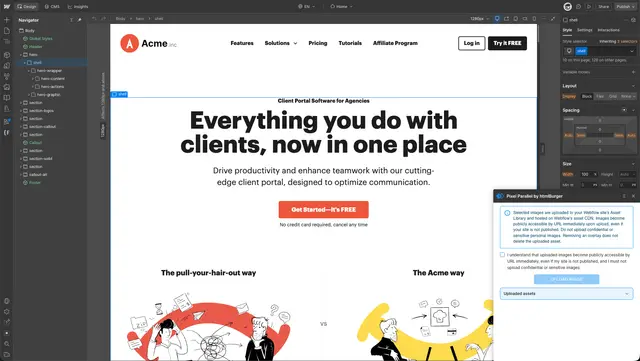
See how your Webflow page lines up with its design while you work. Upload an image and place its semi-transparent layer over the page to compare the two visually.
PixelParallel is intended for front-end developers, designers, and QA professionals checking pages against designs. You can use local image files of different sizes.
Caveats
PixelParallel is available as a Google Chrome extension. Uploaded images stay in the browser, and PixelParallel does not collect personal data.
What's included
- Adjust the overlay’s opacity, scale, and position to align it with the page.
- Hide or lock the image layer when you want to inspect the page without moving it.
- Switch to inversion color-difference mode to help reveal visual discrepancies.
- Drag or minimize the interface as you work.
Questions about Pixel Parallel by htmlBurger
How do I compare a Webflow page with a design?
Upload a design image, then position its overlay on top of the webpage.
Can I use a design image saved on my computer?
Yes. PixelParallel supports local image files and different image sizes.
What happens to the images I upload?
Uploaded images are stored locally in your browser. PixelParallel does not collect personal data.
Is PixelParallel free to use?
There is no charge to use PixelParallel.
Which browser can I use it in?
PixelParallel is available as a Google Chrome extension.