Optimize and Convert Images with Wicked Assets Webflow App
Wicked Assets helps agencies and designers resize, compress and convert images before adding them to Webflow.
Preparing images for Webflow can involve separate tools and manual steps to resize files, reduce their size and change formats. Wicked Assets handles those adjustments before an image is uploaded.
Made by Wicked Apps, it is designed for agencies and designers working with large images for Webflow sites.
Feature notes
- Set image dimensions by resizing before upload.
- Compress files to meet Webflow’s upload rules, including its 4MB limit.
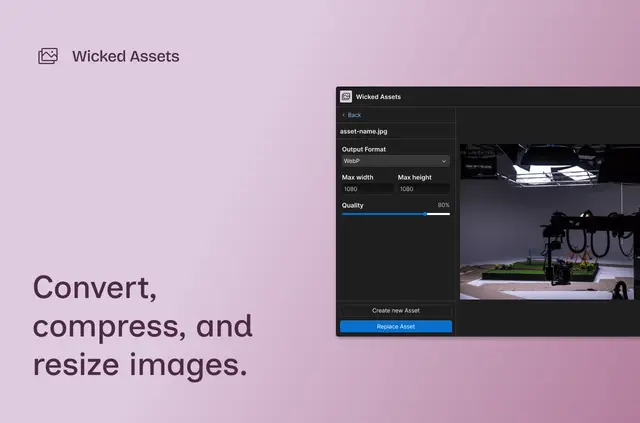
- Convert images to WebP and adjust output quality.
- Review the edited image and its file size in a live preview.
- Start with an existing asset, a device file or an image URL, then send the edited image to the Asset panel.
When it's a good fit
Wicked Assets suits agencies and designers preparing large images for Webflow websites. Its editing controls help get image files ready for upload, and the preview lets teams review the result before sending it to the Asset panel.
Pricing and permissions
The app is listed with a free option and paid plans. Its Webflow permissions allow it to edit CMS content and assets, and read sites and the user profile.
Wicked Assets FAQ
Can Wicked Assets work with my CMS items?
It requests permission to edit CMS content, as well as assets. Its image workflow prepares files and sends them to the Webflow Asset panel.
Can I convert an image to WebP?
Yes. Wicked Assets supports WebP conversion, with controls for output quality and dimensions.
Does the app show a preview before upload?
Yes. Users can inspect a live preview of the image after making edits.
What image sources can I use?
Users can select an existing asset, choose a file from their device or import an image from a URL.
Can I send an edited image straight to Webflow?
Yes. After editing, users can send the optimized image directly to the Webflow Asset panel.