Upload Images to the Assets Panel with AssetPaste Webflow App
Webflow designers and developers can use AssetPaste to move images from other apps into a project’s Assets panel.
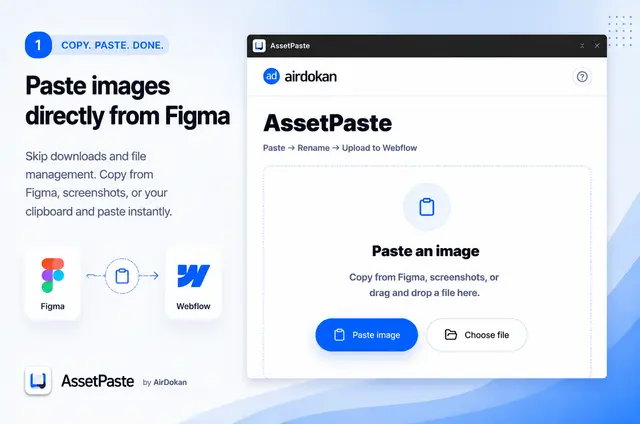
Prepare images for your Webflow project’s Assets panel from within the Designer. Copy images from Figma, screenshots, or other apps into AssetPaste before uploading.
AssetPaste connects to Webflow projects through the Webflow API. AirDokan’s website describes it as free, with no subscription or paywall.
Getting started in Webflow
Run AssetPaste as an extension inside the Webflow Designer. Copy an image from Figma or another app, then paste it into AssetPaste to prepare it for upload.
The main tools
You can prepare images using these tools:
- Preview images before uploading them.
- Rename files and add optional alt text.
- Add images by pasting, dragging and dropping, or selecting files manually.
- Optimize images over 4 MB in your browser; smaller files keep their original file.
AssetPaste in practice
AssetPaste moves prepared images into a Webflow project’s Assets panel. For example, you can prepare a screenshot or a Figma image for upload from inside Designer.
It is suited to people building Webflow sites who regularly bring in images from Figma or other sources.
AssetPaste FAQ
Can non-developers use AssetPaste?
Yes. AssetPaste runs inside the Webflow Designer, where you can prepare images for upload.
Who is the developer behind AssetPaste?
AssetPaste is made by AirDokan.
Can agencies use AssetPaste on client sites?
AssetPaste is suited to Webflow designers and developers who regularly transfer images into projects.
What happens to images larger than 4 MB?
AssetPaste optimizes images over 4 MB in the browser. Smaller images retain their original file.
Does AssetPaste charge a subscription?
AirDokan describes AssetPaste as free, with no subscription or paywall.