Generate Accessible Image Alt Text with AltTextLab Webflow App
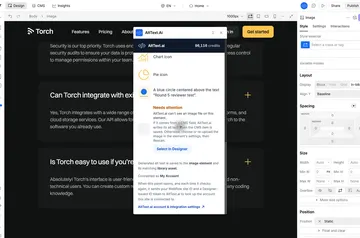
Site owners can prepare relevant image descriptions in Webflow Designer and apply them to images or assets.
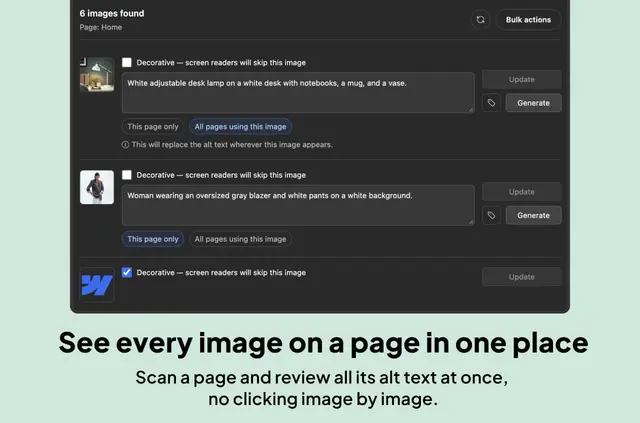
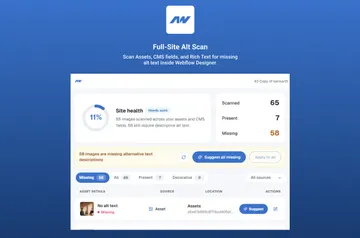
Webflow designers, agencies, freelancers, content teams, and SEO specialists use AltTextLab to manage image descriptions on image-heavy sites. It works inside Webflow Designer and applies descriptions to image elements or assets.
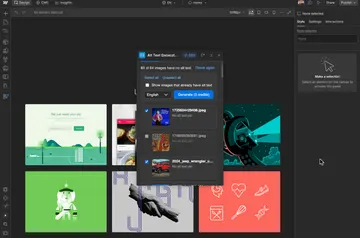
Rather than relying on the image alone, AltTextLab draws on nearby page content when creating descriptions. Users can work on one selected image, images across a page, or items in the site’s asset library.
The main tools
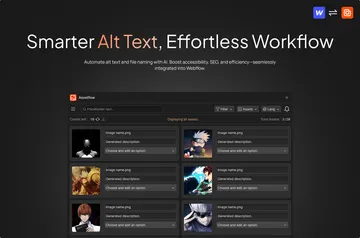
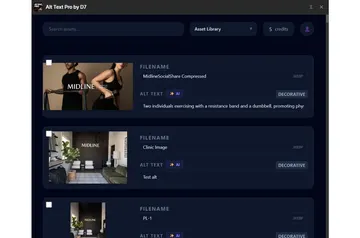
- Generate descriptions for an image, a page’s images, or the site asset library.
- Add SEO keywords and select a writing style for the descriptions.
- Edit suggested text before applying it to an image element or asset.
- Mark decorative images so screen readers can pass over them.
Who gets the most out of it
The app suits teams handling many images across Webflow pages, including agency and freelance projects, content-led sites, and SEO work. Its page-aware descriptions help teams account for surrounding content, while the option to process page images or library assets supports broader image workflows.
AltTextLab FAQ
How do I add AltTextLab to a Webflow site?
Install the app, open it in Webflow Designer, then connect an account with an API key in Settings.
Which image formats and languages does AltTextLab support?
It supports JPG, PNG, SVG, AVIF, and WebP images, and can create alt text in more than 130 languages.
Can I mark an image as decorative?
Yes. AltTextLab lets users identify decorative images for screen readers to skip.
Can I adjust alt text before it is applied?
Yes. Users can add SEO keywords, choose a writing style, and edit descriptions before applying them.
What does AltTextLab cost?
AltTextLab has a free option with 25 credits per month, as well as paid plans.