Convert SVG Code into Editable Elements with SVG Import Webflow App
Paste SVG code into Webflow with SVG Import to create native, editable elements in your project.
For editable SVG graphics in Webflow, SVG Import translates pasted code into the DOM elements that make up the graphic.
Flowcraft made the app for designers and developers working with SVGs in Webflow. It is listed as free.
Things to keep in mind
The source must be valid SVG, such as markup containing shapes or paths. SVG Import also handles files that exceed Webflow’s 10,000-character limit.
What SVG Import does
Once the code is pasted into Webflow, the app creates the graphic from native project elements. You can adjust attributes on nested parts in Webflow’s attributes panels.
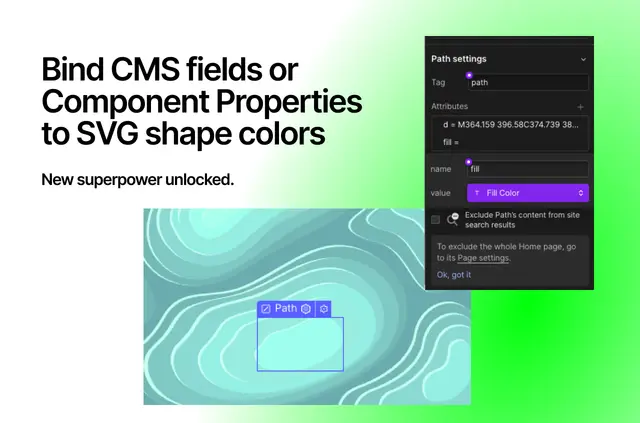
You can also connect data to parts of the graphic: CMS colors can control individual shapes, while CMS fields and Component properties can be linked to shapes and paths.
Features worth knowing
- Create Webflow DOM elements from pasted SVG code.
- Bring in valid SVG files longer than Webflow’s 10,000-character limit.
- Change attributes on nested SVG parts using Webflow’s native panels.
- Set CMS colors for individual SVG shapes.
- Link CMS fields or Component properties to specific shapes and paths.
Common questions
Can I use SVG files that exceed Webflow’s character limit?
Yes. SVG Import supports SVG files beyond Webflow’s 10,000-character limit.
Where can I change an imported SVG’s nested attributes?
Use Webflow’s native attributes panels to change attributes on nested SVG elements.
Can CMS data control the color of an SVG shape?
Yes. SVG Import lets you bind CMS colors to individual SVG shapes.
Can I connect Component properties to SVG paths?
Yes. You can bind Component properties, as well as CMS fields, to individual shapes and paths.
Who made SVG Import, and what does it cost?
Flowcraft made SVG Import. It is listed as free.