Sync Google Sheets to CMS Collections with Sheetflow Webflow App
Use Sheetflow with Webflow CMS collections to send spreadsheet content through on-demand or scheduled syncs.
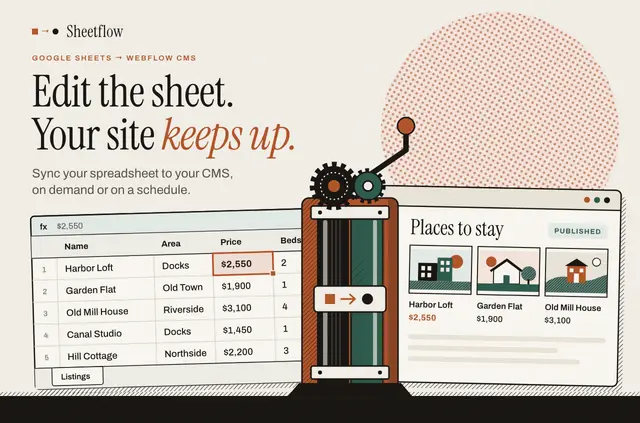
Teams maintaining catalogs, job boards, directories, real estate listings, or client content in spreadsheets can use Sheetflow to transfer that material into Webflow CMS. Connect a Google Sheet, authorize a Webflow site, and match spreadsheet columns to CMS fields.
Choose when to sync: run it on demand or set a schedule. During a sync, Sheetflow updates existing CMS items instead of making duplicates when their spreadsheet content changes.
The main tools
Prepare spreadsheet data and review what a sync is expected to change before sending it to your collections.
- Preview expected updates and identify rows that need correction before syncing.
- Send CMS content such as rich text, image and file fields, references, and multi-reference values.
- Turn Markdown in spreadsheet cells into HTML for Webflow Rich Text fields.
- Use optional tools to create slugs and format dates as ISO 8601.
- Enable publishing of your Webflow site after a successful sync.
Things to keep in mind
Sync capacity and scheduling frequency depend on your plan, while Webflow CMS limits also apply. When connected, Sheetflow can edit CMS content and sites and read your user profile.
Sheetflow FAQ
How much does Sheetflow cost?
Sheetflow offers a free option and paid plans. Sync capacity and scheduling frequency vary by plan.
How do I add Sheetflow to a Webflow site?
Connect a Google Sheet and authorize the Webflow site you want to use. Then match the sheet columns to fields in your CMS collection.
Can Sheetflow publish my site after a sync?
Yes. You can enable Webflow site publishing after a successful sync.
Can I use Markdown in a Webflow Rich Text field?
Yes. Sheetflow can convert Markdown in spreadsheet cells to HTML for Webflow Rich Text fields.