Add Custom HTML Elements with Magic Elements Webflow App
In the Webflow Designer, Magic Elements adds HTML elements beyond the native set for sites being built.
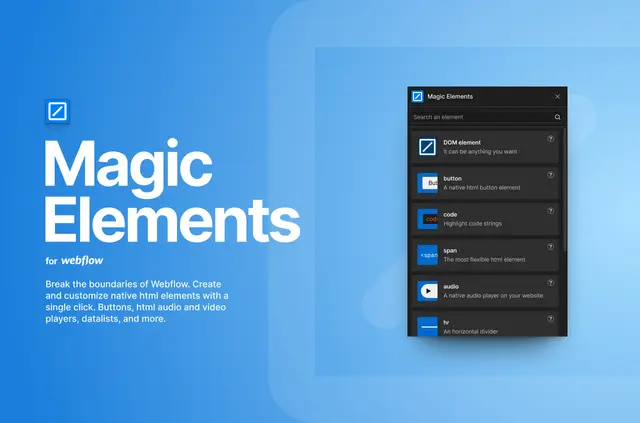
Visitors can use pages with HTML elements beyond Webflow’s native options. Designers add an element with one click and customize it in Webflow.
Where it fits
Magic Elements suits Webflow designers building projects that need HTML tags outside the native element set. It can support pages that call for specific markup, including description lists and progress indicators.
What you can do with it
Add elements to a Webflow project, then adjust them in the Designer. For example, a page can include an audio player or iframe, while the DOM element can create a custom HTML element.
The main tools
- Add buttons, code blocks and spans.
- Place audio or video players and iframes.
- Use datalists, details and summary, and description lists.
- Add progress indicators to a page.
- Create custom HTML elements with a DOM element.
Common questions
What can the DOM element create?
It lets designers create custom HTML elements.
How are elements added to a project?
An element can be added with one click and then customized in Webflow.
Which media elements are available?
Magic Elements includes audio and video players, as well as iframes.
What list-related elements does it offer?
Options include datalists and description lists, along with details and summary elements.
Which HTML elements can it add beyond media and lists?
It also offers buttons, code blocks, spans, and progress indicators.