Browse and Use Brand Assets with Frontify Webflow App
Webflow sites can use brand assets managed in Frontify, with selected files served by CDN or copied into Webflow Assets.
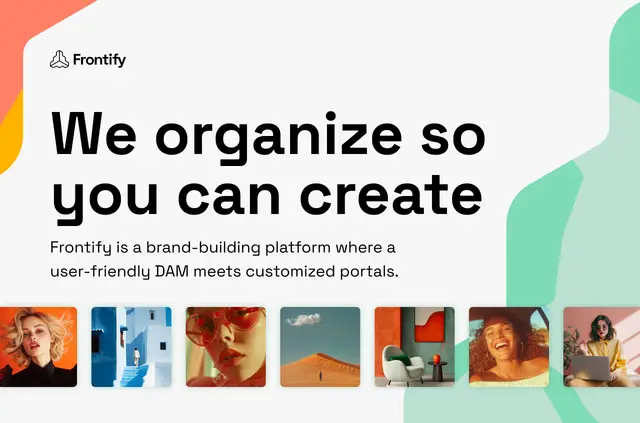
In Webflow Designer, teams can browse the Frontify brands and folders they have permission to access. Search and filters help locate assets while building a site.
The paid app provides asset details in Webflow, including titles, descriptions, tags, and licensing information.
Frontify in practice
Frontify connects its digital asset management system to a Webflow project. Designers can inspect available brand files and choose how to bring selected assets into their work.
Getting started in Webflow
Install the app, connect it, and authenticate with a Frontify account. After setup, users can browse accessible brands and folders in Webflow Designer.
What's included
- Find files by searching or filtering titles, descriptions, tags, and metadata.
- Review asset titles, descriptions, tags, and licensing information in Webflow.
- Use selected files as Frontify CDN links or copy them into Webflow Assets.
- Modify Frontify CDN files through the asset processing API.
Questions about Frontify
Does Frontify suit client projects?
It suits teams that need access in Webflow to brand-approved assets managed in Frontify.
Which Frontify folders can users browse in Webflow Designer?
Users can browse the brands and folder structure for assets they can access in Frontify.
What information can users search or filter by?
Search and filters cover asset titles, descriptions, tags, and metadata.
How does a team connect its Frontify account?
Install the app, connect it, then authenticate with a Frontify account.
Can Frontify CDN assets be modified?
Yes. Frontify CDN assets can be modified using its asset processing API.