Edit Custom JavaScript and CSS with Flowblock Webflow App
Edit JavaScript and CSS in Webflow, with code suggestions and an AI assistant built into the Designer.
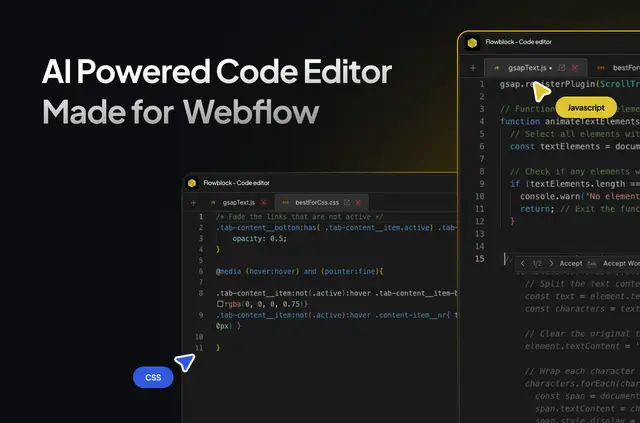
Adding custom behavior or styles in Webflow can mean switching to another editor and moving code back into the site. Flowblock brings code editing and AI assistance into the Webflow workflow for site builders working with JavaScript and CSS.
Its editor offers code completion and suggestions as code is written, while a staging file lets builders test changes on a webflow.io site before publishing.
Access and pricing
Flowblock is listed as free and is made by thind.dev. When installed, it can edit custom code and site settings, and read sites and the user profile.
From install to first use
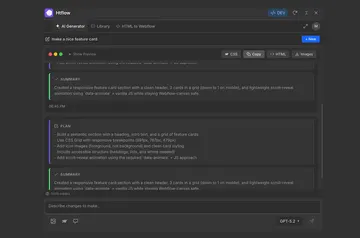
Install Flowblock, then open the Webflow Designer and press ⌘+K to bring up its built-in AI assistant. On a webflow.io site, save the staging file with ⌘+S to test code without publishing.
The main tools
- Get JavaScript and CSS suggestions while typing, and press Tab to accept a suggestion.
- Use code highlighting, syntax suggestions, and autocompletion in the editor.
- See recommendations for common coding mistakes.
- Test code using a staging file served to webflow.io sites.
- Keep staging changes apart from production with separate files served on custom domains.
Questions about Flowblock
How do I open Flowblock’s AI assistant?
Press ⌘+K in the Webflow Designer to open the built-in assistant.
How do I accept a code suggestion?
Press Tab to accept a JavaScript or CSS suggestion as you type.
Can I test code without publishing?
Yes. Flowblock serves a staging file to webflow.io sites, which can be saved with ⌘+S for testing.
Can staging changes reach my production site?
Separate production files are served on custom domains to keep staging changes from reaching production unintentionally.
How are Flowblock’s code files delivered?
Flowblock uses Cloudflare’s CDN to host and deliver code files.