Apply Custom CSS Clip Paths with Clip Path Bae Webflow App
For Webflow builders shaping site assets, Clip Path Bae applies ready-made and custom CSS clip paths.
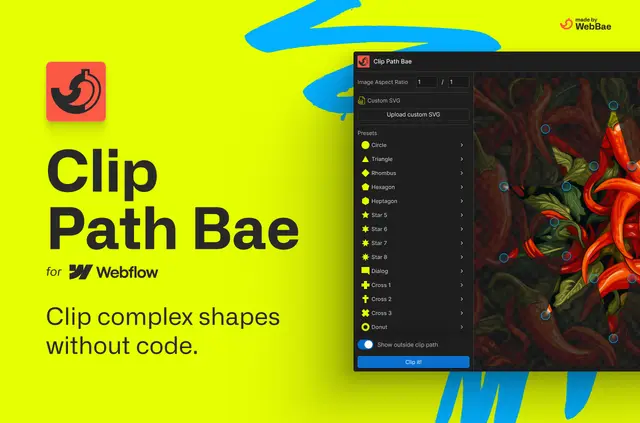
Choose a preset or upload an SVG to shape an asset in your Webflow project. Presets use CSS polygon, ellipse, and circle functions.
For custom shapes, upload an SVG exported from Figma or Illustrator. Clip Path Bae converts its path coordinates into normalized relative values.
Feature notes
- Apply preset shapes with CSS polygon, ellipse, and circle functions.
- Upload an SVG file to use a custom clipping shape.
- Combine multiple SVG paths in a custom design.
- Use normalized relative coordinates so a shape adapts to different image dimensions.
Clip Path Bae in practice
For custom SVG clipping, the app places hidden SVG elements in your project and connects them with a clip-path URL attribute. CSS clipping can keep shapes crisp as they resize and reduce reliance on large transparent image files.
You can change the shape in CSS rather than replace a transparent image. Clip paths also support animated transitions and hover effects on clipped elements.
Clip Path Bae FAQ
Can one custom clipping design use more than one SVG path?
Yes. SVGs containing multiple paths can be used to build custom designs.
How does the app connect a custom SVG shape to an asset?
It adds hidden SVG elements to the project and references them through a clip-path URL attribute.
Why convert SVG path coordinates to relative values?
Normalized relative coordinates let shapes adapt to different image dimensions.
Can CSS clip paths be changed without replacing an image?
Yes. Editing a clip path in CSS makes shape changes easier than replacing a transparent image.
What can CSS clip paths do for resized assets?
They can keep shapes crisp when resized and reduce reliance on large transparent image files.