Customize SVG Icon Colors and Strokes with SVGFlow Webflow App
Set SVG icon colors, dimensions, and stroke widths in Webflow as you shape your site’s design.
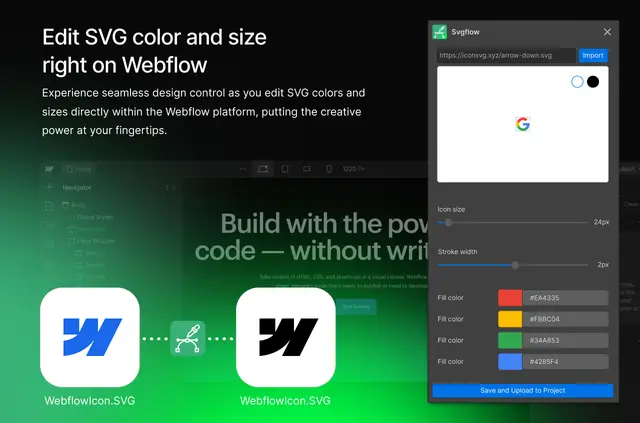
Designers and Webflow teams can use SVGFlow to adapt icons to a project’s visual style. Change an icon’s color to suit your palette, resize it for a layout, or adjust its stroke width.
Make these edits in Webflow’s design environment instead of using external tools. SVGFlow is made by Modulify.ai.
What SVGFlow does
Use SVGFlow in a Webflow project to tailor SVG icons to your design. For instance, change an icon’s color to fit your palette, resize it for a layout, and adjust the weight of its stroke.
Before you install
SVGFlow is listed as free. When installed, it can edit assets and read sites and your user profile. These are the Webflow permissions it requests.
The main tools
- Change SVG icon colors to match a project palette.
- Resize SVG files to suit your design.
- Adjust the stroke width of an SVG icon.
- Edit icons directly in Webflow without external tools.
Questions about SVGFlow
Where do I edit SVG icons with SVGFlow?
You can edit SVG icons directly in Webflow’s design environment.
Can I resize SVG files for my layout?
Yes. SVGFlow lets you resize SVG files to suit your design.
Can I change the thickness of an SVG icon’s strokes?
Yes. SVGFlow allows you to adjust an SVG icon’s stroke width.