Accept Payments via PayPal Links with PayPal Payment Links Webflow App
For creators, small businesses, and agencies using Webflow, PayPal Payment Links let you take payments without a full store.
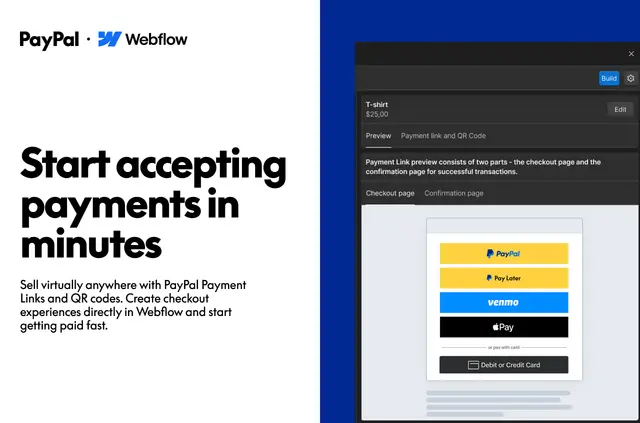
Once set up, your visitors can pay through a PayPal checkout link or QR code on a Webflow page. You can also place a link behind a button, and payments go to your connected PayPal business account.
Use links to sell digital products, services, or physical goods without building a full store. Create links in Webflow and edit them there; updates apply to the links already embedded on your pages.
Feature notes
- Include product details, prices, variants, shipping choices, and notes from buyers in a payment link.
- Offer quantity choices, add shipping charges, and set tax rates for payments.
- Embed links or QR codes on Webflow pages, including behind buttons; edits update the embedded links.
- Send customers back to your site after checkout by setting a redirect URL.
- Process refunds through PayPal.
Before you install
The app is free to install. PayPal charges its usual transaction fees on payments received.
When installed, the app can edit custom code and assets, and read your sites and user profile.
PayPal Payment Links FAQ
How do I add PayPal Payment Links to a Webflow site?
Install the app, connect a PayPal business account and linked bank account, then create a payment link in Webflow. Add the link or its QR code to a page, or put the link behind a button.
Can I use a personal PayPal account?
No. A PayPal business account is required; personal accounts are not supported.
Where do payments go, and how can I handle refunds?
Payments are sent to the connected PayPal business account. You can manage refunds through PayPal and view transactions in its dashboard.