Insert Editable Icons into Designs with Ikonik Webflow App
Use Ikonik in the Webflow designer to browse, add, and upload icons without leaving your design work.
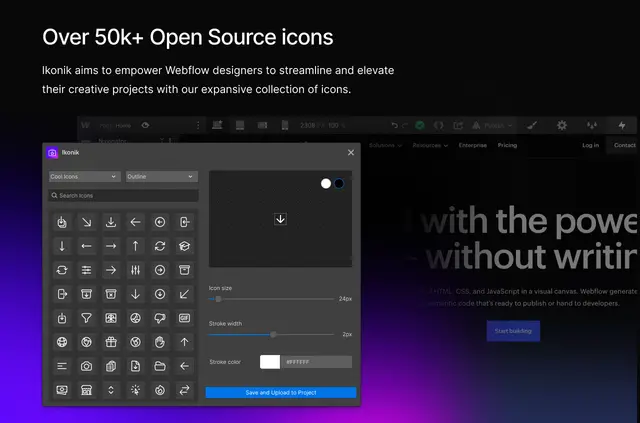
Adding icons to a Webflow site can mean switching tools. Ikonik gives you access to its icon collection from inside the designer, where you can browse and insert icons with a few clicks.
You can filter by category and format, then upload icons to Webflow or use the available SVG files.
What it asks for
Ikonik is free to use. When you install it, the app can edit your assets and read your sites and user profile.
Getting started in Webflow
Install Ikonik to access it in the Webflow designer. Browse the icons, filter by category or format, and insert your choice; you can also upload icons to Webflow.
Quick answers about Ikonik
How many icons can I browse in Ikonik?
Ikonik offers over 50,000 open-source icons, arranged in 45 packages.
What icon styles are available?
You can choose between Outline and Filled formats.
Can I filter the icon collection?
Yes. Ikonik lets you filter icons by category and format.
Can I edit icons as SVGs?
Yes. The icons are editable SVGs.
Can I add icons without leaving the Webflow designer?
Yes. Ikonik is designed for Webflow users to insert icons from within the designer.