Collect Support Questions with Smartarget Contact Form Webflow App
Place a contact icon across your Webflow pages so visitors can open a form and send support questions.
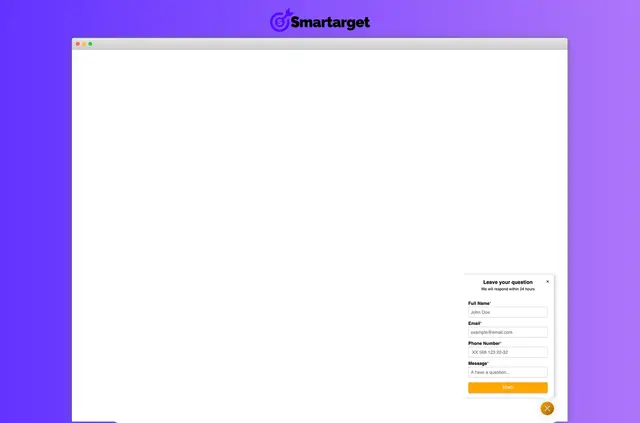
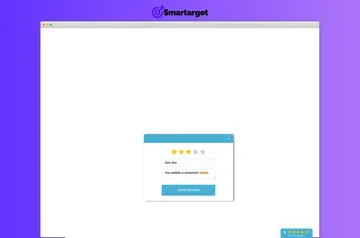
Businesses and support teams can use Smartarget Contact Form to gather customer questions and information on a Webflow site. Visitors open the form from an icon shown across pages, rather than looking for a separate contact page.
You can set up the form in less than five minutes without needing development skills. Choose its appearance and decide which details visitors must provide.
Features worth knowing
- Pick an icon style and call to action, then apply your brand colors.
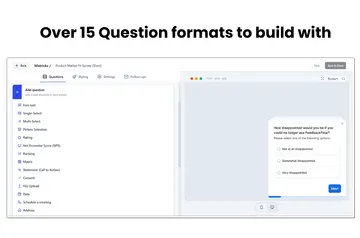
- Choose which form fields visitors must complete and which they can skip.
- Receive each submission by email, with Telegram notifications available as an option.
- Let visitors use the form on desktop and mobile devices.
Smartarget Contact Form in practice
In a Webflow project, the icon gives visitors a way to contact your support team while browsing any page. For example, you might require a contact detail but leave other fields optional. Submissions arrive by email, and you can also enable Telegram notifications.
Common questions
Does Smartarget Contact Form suit client projects?
It suits businesses looking to collect customer questions and information for support. The icon, call to action, colors and field requirements can be chosen for a project.
How do you install Smartarget Contact Form in Webflow?
Setup takes less than five minutes and does not require coding expertise. The app requests permission to edit custom code and read sites.
How much does Smartarget Contact Form cost?
Smartarget Contact Form is listed with a free option and paid plans.
Where do form submissions go?
Every submission is sent by email. Telegram alerts are also available if you choose them.
Can visitors use the form on mobile devices?
Yes. The form works on mobile devices as well as desktop computers.