Add a Tap to Call Contact Widget with Click to Call Webflow App
Give visitors a phone contact option, with tap-to-call on mobile and a displayed number on desktop.
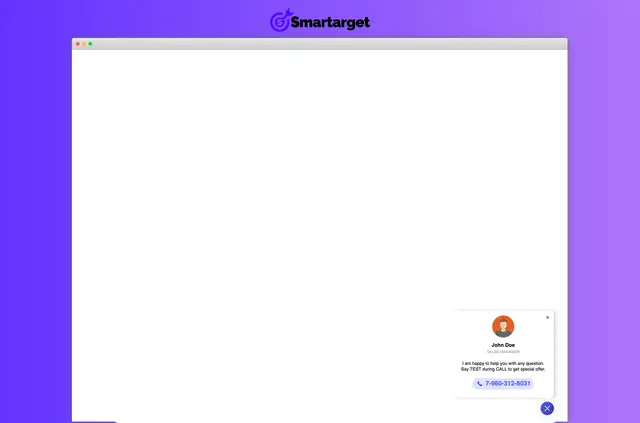
Click to Call does its work on your published site, giving visitors a direct way to contact your business by phone.
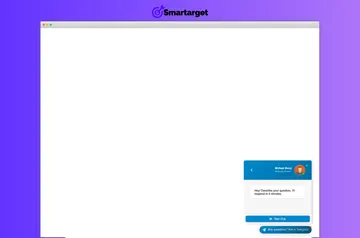
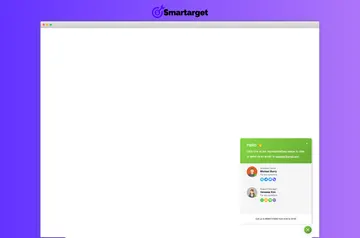
On mobile, visitors tap the widget to place a call. On desktop, it shows your phone number. You can also display a contact’s name, role and photo, and adjust the widget’s styling to suit your site.
Getting started in Webflow
Install Click to Call through Webflow. The access it requests includes permission to edit custom code and read sites.
After installation, use the widget on your site to offer a phone contact option.
Who it suits
This app suits businesses that want to provide customer support over the phone. The contact name, role and profile photo can help show visitors who they are reaching.
Smartarget says its apps work across website platforms, so Click to Call is not limited to Webflow sites.
Before you install
Click to Call is listed with a free option and paid plans. Smartarget’s website says its apps have no installation charge.
When installed through Webflow, it requests permission to edit custom code and read sites.
Quick answers about Click to Call
Who makes Click to Call?
Click to Call is made by Smartarget.
What does Click to Call show on desktop?
On desktop, the widget displays the phone number.
Can visitors call from a mobile site?
Yes. Mobile visitors can tap the widget to call directly.
Can I customize the widget’s appearance?
Yes. You can adjust its styling to match your website.
Can the widget identify a contact?
It can show a contact’s name, role and profile photo.