Add Website Widgets with All-in-one Website Tools Webflow App
Add widgets and practical utilities to Webflow pages, then tailor their appearance and settings to the site.
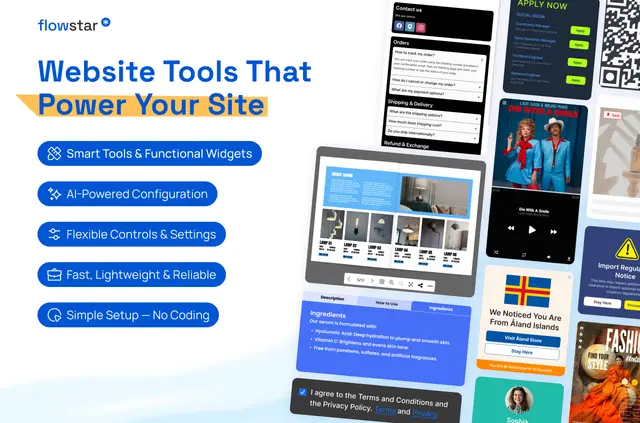
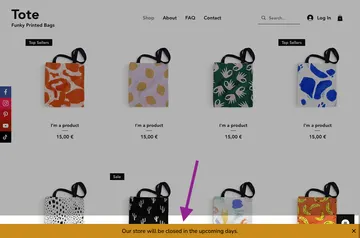
Webflow site owners building business pages, portfolios, SaaS sites, blogs, and online stores use All-in-one Website Tools to add functions such as payment buttons, PDF viewing, and security controls.
Made by Flowstar, the paid toolkit groups more than 15 widgets and utilities. Site teams can add them to Webflow pages without writing code and adjust their styles, layouts, and settings.
How setup works
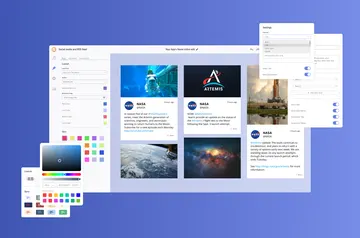
Install the toolkit, then configure the widgets for the pages where they will appear. The app says widgets can be set up in minutes, and their settings and presentation can be tailored to a site's design.
When installed, the app requests permission to edit custom code, ecommerce, and sites, and to read pages, assets, and the user's profile.
What it handles
The toolkit adds functional elements to Webflow projects. For content, that can mean a PDF catalog flipbook, tabs, a terms and conditions box, or an audio player. Business options include job postings, click-to-call, payment buttons, and a Pinterest pin button.
It also offers a website translator and browser tab notifications, alongside security features such as password access, right-click blocking, adblock detection, and warning popups.
Feature notes
- Use the PDF viewer to present PDF content on a Webflow page.
- Add an FAQ widget, tabs, or a terms and conditions box for site information.
- Offer visitors payment buttons or a click-to-call option.
- Set up right-click blocking, password access, adblock detection, or warning popups.
- Choose widget styles and layouts, with designs intended to adapt to desktop, tablet, and mobile screens.
Common questions
Does All-in-one Website Tools work with Webflow Ecommerce?
The app requests permission to edit Webflow Ecommerce when installed.
Do the widgets adapt to mobile screens?
The widgets are designed to adapt to desktop, tablet, and mobile screens.
What kinds of websites is the toolkit suited to?
It is suited to business websites, portfolios, SaaS sites, blogs, and online stores.