Manage Documents and File Links with DocBeam Webflow App
Inside the Webflow Designer, DocBeam organizes site documents and adds links to files hosted on its CDN.
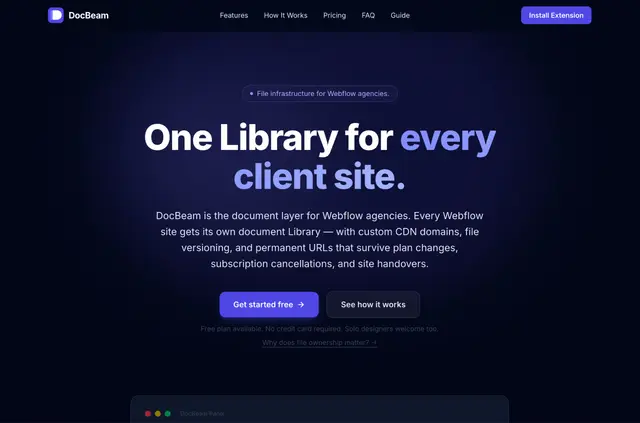
DocBeam keeps uploaded documents on its own CDN, so file downloads are handled outside Webflow hosting and do not count against its bandwidth.
Its Designer panel supports uploading, finding, browsing and organizing documents. From there, users can copy a file’s URL or place a Webflow Text Link in a chosen container.
When it's a good fit
Freelancers and agencies handling client documents may find DocBeam useful when files should remain accessible through changes to a plan or a site handover. Documents live in a Library for the relevant Webflow site.
Pricing and permissions
There is a free option, with paid plans raising storage, document and file-size limits and extending version retention. Custom CDN domains are available on eligible plans.
On installation, DocBeam requests permission to read sites and the user profile.
Setting it up
Install DocBeam, then launch it through Apps in the Webflow Designer. Upload documents to the site's Library to start managing them in the panel.
DocBeam FAQ
Do document downloads use Webflow hosting bandwidth?
No. DocBeam serves uploaded files through its own CDN, so those downloads do not draw on Webflow hosting bandwidth.
What happens to a file's URL when I replace the document?
The new document is served at the same URL. How long previous versions are kept depends on the plan.
How can I add a document link to a page?
Copy the document URL, or insert a Webflow Text Link into a selected container from DocBeam.
What usage details does DocBeam show?
Its usage tracking displays storage, document count and bandwidth delivered through the DocBeam CDN.
Which Webflow permissions does DocBeam request?
When installed, it asks to read sites and the user's profile.