Manage CMS Collections & Items with SV CMS Mananger Webflow App
Site teams can manage Webflow CMS content from a SearchVector dashboard without opening the full designer.
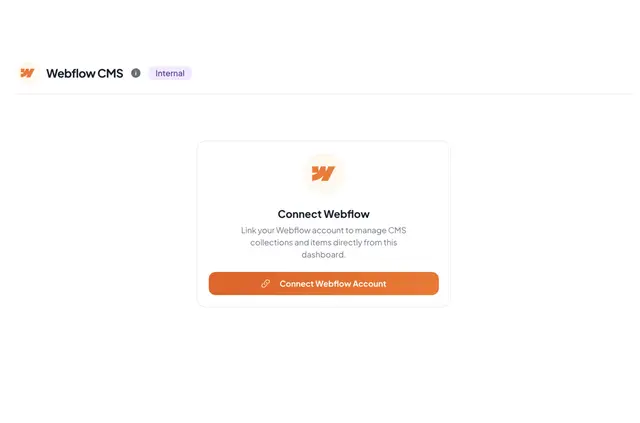
Content teams, SEO managers, developers and agencies can work with Webflow collections and items in a separate dashboard. The app connects through Webflow’s OAuth 2.0 authorization flow, so setup does not require an API key.
After signing in to SearchVector with Google and authorizing Webflow, users choose a site and collection to manage. The app is made by SearchVector and listed as free.
What's included
- Create, edit and copy items, including fields for text, dates, numbers, contact details, colors, Boolean values and options.
- Search items by name or slug, filter by status, switch between active and archived views, and browse pages of 20.
- Use a collection’s SEO tab to work with supported meta, Open Graph and Twitter fields.
- Publish chosen draft items together or publish an entire site to its domains.
- Archive or delete items, make draft copies, and preview published content at its Webflow subdomain URL.
Caveats
Image, video and media reference fields cannot be changed in the app; those remain in the Webflow designer. The SEO tab is available only for collections with supported SEO fields.
Installation requests permission to edit CMS content, pages and sites.
Questions about SV CMS Mananger
How does the app connect to a Webflow site?
Users sign in to SearchVector with Google, authorize Webflow through OAuth 2.0, then select a site and collection. An API key is not needed.
Which CMS fields can be edited in the dashboard?
The editor supports text, number, date, URL, email, phone, color, Boolean and option fields. Image, video and media reference fields stay under management in the Webflow designer.
Can SEO details be changed for a collection?
A separate SEO tab is available for collections that have supported meta, Open Graph and Twitter SEO fields.
What publishing actions are available?
Users can publish selected draft items in bulk, or publish a whole Webflow site to its domains.
How can users find and organize CMS items?
Items can be searched by name or slug, filtered by status, and viewed as active or archived. The dashboard displays 20 items per page; users can also archive, delete or duplicate items as drafts.