Mapbox Scrollytelling Webflow cloneable
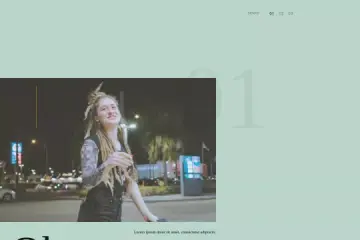
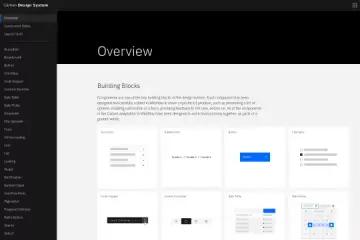
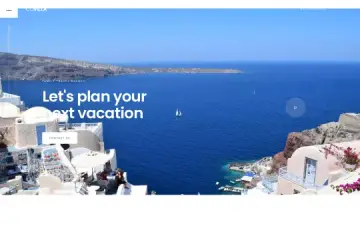
Enhance your storytelling with the Mapbox Scrollytelling Webflow cloneable. Create interactive, captivating maps that dynamically shift as users scroll. Elevate your website's narrative with customizable features, engaging users, and enhancing site usability.
About cloneable
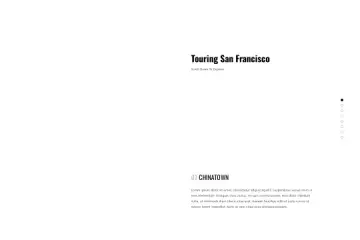
The Mapbox Scrollytelling cloneable by CJ Hersh is a practical demonstration of how to integrate Mapbox seamlessly into a Webflow project to enhance storytelling through interactive maps. This cloneable showcases a dynamic narrative experience where users can engage with content as they scroll through a webpage, triggering geographical shifts and visual elements that captivate attention.
By utilizing Mapbox GL JS, this clone allows developers to create fully interactive, customizable maps that respond to user actions without requiring direct input, promoting a fluid and immersive experience. The clever use of scroll events ensures that as users navigate through different sections of the page, the corresponding map location updates, maintaining context and relevance.
The project features several chapters, each linked to unique map positions, enabling smooth transitions through the map.flyTo() function to guide users through a narrative effectively. Additionally, the inclusion of 3D building representations adds depth to the visualization, making the maps not only functional but visually stunning.
This cloneable is particularly beneficial for Webflow users looking to elevate their website's storytelling capabilities. Implementing this feature provides a rich, interactive layer to content, engages users more deeply, and enhances overall site usability. Customizing the provided code allows developers to tailor the map's appearance, behavior, and content to align with their brand’s narrative, enriching user engagement and satisfaction. Overall, this clone serves as an essential resource for anyone aiming to create a memorable web experience.
About CSS
How can I remove tap highlight color in Webflow when using Mapbox GL JS?
The CSS rule .mapboxgl-canvas sets the -webkit-tap-highlight-color property to rgba(0, 0, 0, 0), which effectively removes the tap highlight effect that occurs when users tap on the canvas element in mobile devices. This is particularly useful for Webflow projects that utilize Mapbox, as it ensures that tapping on the map does not trigger any unwanted visual feedback.
What does the focus outline rule do in the context of Webflow and Mapbox GL?
The rule .mapboxgl-canvas:focus sets the outline property to none. This means that when the canvas element gains focus (for example, when a user clicks or taps on it), there will be no outline displayed around the element. This is important for maintaining a clean design in Webflow projects that integrate with Mapbox, as it prevents the default browser outline from appearing, which can detract from the overall appearance of the map interface.
How do these CSS properties integrate with external libraries like Mapbox in a Webflow project?
These CSS properties are specifically targeting the Mapbox GL JS canvas element, which is the primary component used for rendering the map. When integrating Mapbox with Webflow, you may want to customize the user interaction experience, especially on mobile devices. By using the specified CSS rules, you ensure that the user interface is seamless and visually appealing, with no interruptions from tap highlights or focus outlines that could distract or confuse users. These minor CSS adjustments enhance the overall experience when using external libraries like Mapbox within a Webflow environment.
About Javascript
What functionalities does the Mapbox GL JS library offer in this JavaScript snippet?
Mapbox GL JS is a powerful library that allows developers to create interactive, customizable maps. In this code, it initializes a map centered on San Francisco, applies a light style, and adds 3D building data. This enhances user experience by providing dynamic visualizations and geographic context within the Webflow site.
How does the script handle fly-to animations between different map views using Webflow?
The script defines several 'chapters' that represent different locations on the map. When a user scrolls, the window.onscroll function checks which chapter element is visible on the screen and triggers the setActiveChapter function, which calls map.flyTo() to smoothly zoom and navigate to the selected location, creating an engaging storytelling experience within Webflow.
What role do CSS classes play in managing active chapter states in this JavaScript code?
CSS classes are used to visually indicate which chapter is currently active. As a user scrolls through the webpage, the setActiveChapter function changes the class of the currently active chapter to 'active' and removes it from the previous chapter. This interaction helps in providing clear visual feedback to users in the context of a Webflow project.
How does the use of the isElementOnScreen function enhance user navigation in this code?
The isElementOnScreen function determines if a specific chapter's associated HTML element is visible within the viewport. This functionality ensures that as the user scrolls, the displayed map location updates accordingly, giving a cohesive experience that feels responsive and intuitive on the Webflow site.
What features are provided by the 3D buildings layer added to the Mapbox map?
The 3D buildings layer enhances the map's visual representation by using height data to create realistic building models. The layer applies smooth transitions as the user zooms in, making the map more immersive and engaging while showcasing architectural contexts that can enrich the content on a Webflow website.
How does the JavaScript code integrate map interaction without requiring user input?
The code listens for scroll events and automatically transitions the map according to the chapter currently visible on the screen. By leveraging the onscroll event handler, the map responds to the user's scroll position, facilitating a hands-free navigation experience that enhances the storytelling aspect of the Webflow project.
In summary, this JavaScript code incorporates multiple external libraries to deliver a cohesive, user-friendly experience tailored for a Webflow project, integrating custom fonts, responsive maps, and smooth transitions that collectively enrich the user experience.