360° Product Viewer Webflow cloneable
Enhance your website with a 360° Product Viewer Webflow cloneable, designed for interactive product showcasing. Elevate engagement with dynamic visual elements and seamless transitions. Integrate jQuery for smooth interactions and drag-and-drop capabilities. Ideal for Webflow users seeking to boost product presentation and conversions.
About cloneable
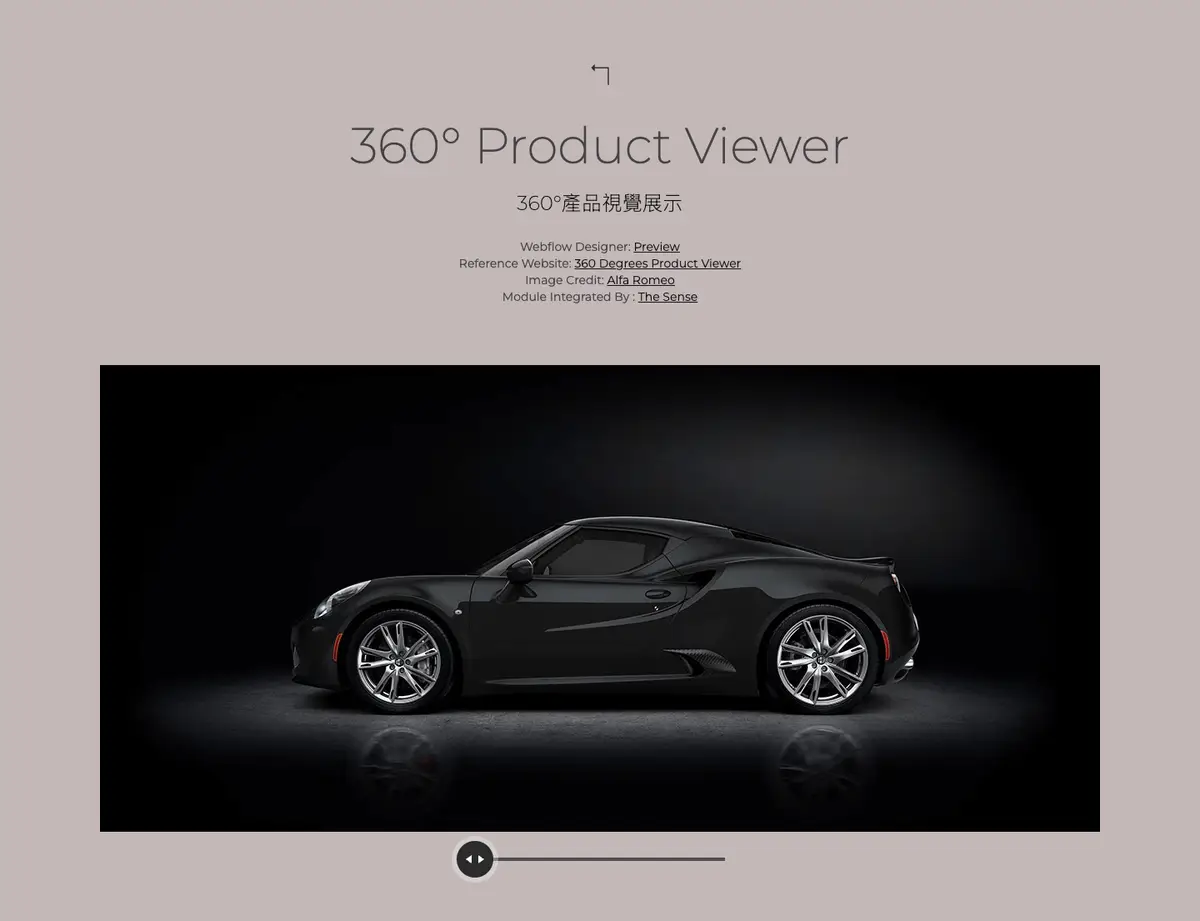
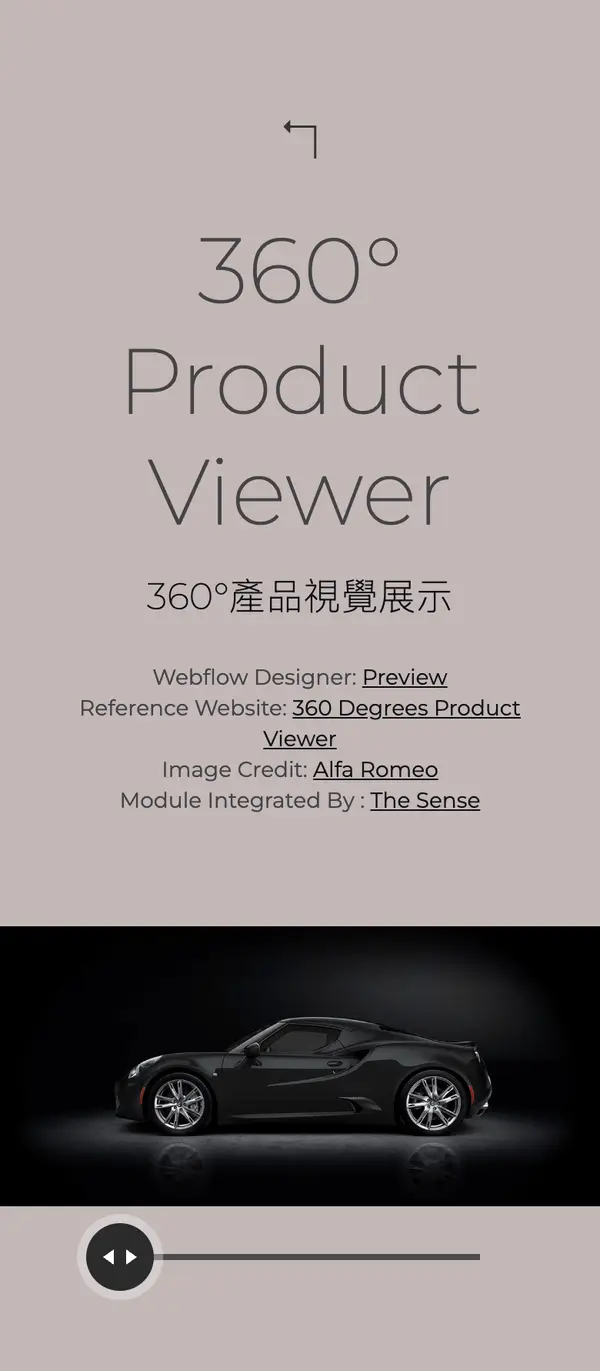
This Webflow cloneable offers a sophisticated 360° Product Viewer, expertly designed by Perr Tang, that allows users to showcase their products interactively. The primary function of this tool is to provide a dynamic visual representation of products, enabling potential customers to rotate and examine items from all angles. This immersive experience can significantly enhance product engagement on an e-commerce website or portfolio.
The cloneable employs custom CSS to manage visual elements such as opacity, scaling, and animations, ensuring a smooth and enjoyable user interface. When the product viewer is loaded, the visual transition is seamless, thanks to the .loaded class that enhances the opacity and transforms the viewer handle for intuitive interaction. Additionally, the use of transitions and animations adds a lively touch, making the browsing experience more engaging.
Functionally, the integration of jQuery within the JavaScript code streamlines interactions, such as drag-and-drop capabilities to rotate product images. These interactions facilitate a more tactile experience, supporting users to explore intricate details that static images may miss. Furthermore, the product frames are preloaded for smooth operation, which prevents delays that could detract from user satisfaction.
This cloneable is particularly beneficial for Webflow users looking to elevate their product showcasing methods, providing an enhanced visual appeal that can lead to increased interest and conversion rates. By implementing this 360° Product Viewer on their sites, users can create a modern, engaging shopping environment that captures customer attention and facilitates exploration.
About CSS
What does the CSS code for a 360-degree product viewer in Webflow do?
This CSS code is designed to style a 360-degree product viewer that allows users to interactively rotate a product image. It manages visual elements like opacity, scaling, and animations to enhance user experience within a Webflow project.
How does the .loaded class affect the product viewer's appearance?
The class .loaded indicates that the image sprite has completely loaded. When this class is applied, the product sprite becomes fully visible with opacity: 1, and the viewer handle transforms from a scaled-down state to a normal size, allowing for a smooth interaction transition.
What role do transitions and animations play in the CSS?
Transitions and animations create a more dynamic and engaging user experience. The transition property is used to gradually change the properties of the product viewer (like transform and opacity), while the @keyframes animations (like cd-bounce) are used to animate the handle for an enhanced visual effect, making it appear to bounce when the product viewer is activated.
How does the CSS ensure compatibility across different browsers?
The CSS includes vendor prefixes for various properties (like -webkit-, -moz-, -ms-, -o-) to ensure that the styles are compatible with different browsers. This is particularly important in CSS animations and transforms, which may not be recognized uniformly across all web environments.
What happens to the product viewer when the .no-csstransitions class is applied?
When the .no-csstransitions class is in effect, the fill element of the product viewer handle is hidden (display: none), preventing any animated transitions from occurring. This can be useful for optimizing performance on devices where CSS transitions may cause lag.
Can this CSS code be used alongside external libraries in Webflow?
Yes, this CSS code can be combined with external libraries, such as jQuery or any JavaScript libraries that enhance interactive elements. It is common in Webflow projects to integrate such libraries for added functionality, like event handling or additional animations, while using custom CSS for styling the UI components.
How does the cursor: ew-resize property impact user interaction?
The cursor: ew-resize property changes the mouse cursor to indicate that the user can interact with the product viewer by dragging it horizontally. This visual cue is important for usability, letting users know they can rotate the image by clicking and dragging.
What is the significance of the .ui-loader.ui-loader-default{display:none;} rule at the end of the code?
This rule hides the default loading text that appears in jQuery Mobile frameworks. When implementing a 360-degree product viewer, it is important to have a clean interface, and this rule eliminates any unnecessary loading indicators, thus enhancing the visual presentation during image loading times.
About Javascript
How does jQuery fit into the functionality of this JavaScript code?
The code relies on jQuery (specifically version 2.1.4) for DOM manipulation, event handling, and animation effects. jQuery simplifies the syntax for selecting HTML elements, binding events (like mouse movements and clicks), and animating properties, making the code more concise and easier to manage compared to vanilla JavaScript.
What is the purpose of the product viewer in this Webflow JavaScript code?
The productViewer function in the code creates an interactive product viewer that allows users to drag handles and view different frames or images of a product. This feature provides a visually engaging way for users to explore details of the product, enhancing usability and user experience on the Webflow site.
How does the drag functionality work in this Webflow JavaScript code?
The drag functionality is achieved through event listeners on the product viewer handle and the image slider. When the user clicks and drags the handle or slider, the corresponding functions (dragHandle and dragImage) track mouse movements to adjust the position of the product viewer. The position calculations manage frame changes and updates the visuals displayed, leveraging requestAnimationFrame for smooth animations.
What are the benefits of using requestAnimationFrame in this code?
Using requestAnimationFrame provides a more efficient way to manage animations in the browser. It allows the browser to optimize the animation rendering, reducing the number of frames drawn. This results in smoother animations and better performance during drag operations in the Webflow product viewer, making the user experience more seamless.
How does the code ensure that product frames load correctly before user interaction?
The loadFrames method within the productViewer constructor preloads image frames necessary for the product viewer. It uses jQuery’s load event to determine when the image is completely loaded before allowing user interaction. A loading function updates the visual state of the handle until all frames are fully loaded, ensuring a polished experience without delays.
Why is there a need for the transformElement function in this Webflow code?
The transformElement function standardizes the application of CSS transforms across different browsers. It ensures compatibility with various browser-specific prefixes (like -moz-, -webkit-, etc.) so that the translation and scaling effects applied to elements (like moving the product images or the handle) work consistently across all major browsers.
How does this JavaScript code enhance the interactive elements of a Webflow site?
This JavaScript code enhances the interactivity by allowing users to manipulate elements directly (via dragging), creating a more dynamic and engaging user experience. The integration of external libraries like jQuery and WebFont, alongside custom scripts for features like the product viewer, pushes the boundaries of static web pages to create a more immersive presentation of products on a Webflow site.