Sophisticated CMS Lightbox Webflow cloneable
Enhance your website's visual appeal with this sophisticated CMS lightbox Webflow cloneable by Timothy Ricks. Featuring multiple collections, seamless lightbox experience, and customizable CSS options, it's perfect for portfolios and galleries. Effortlessly elevate user engagement with this efficient and user-friendly cloneable.

About cloneable
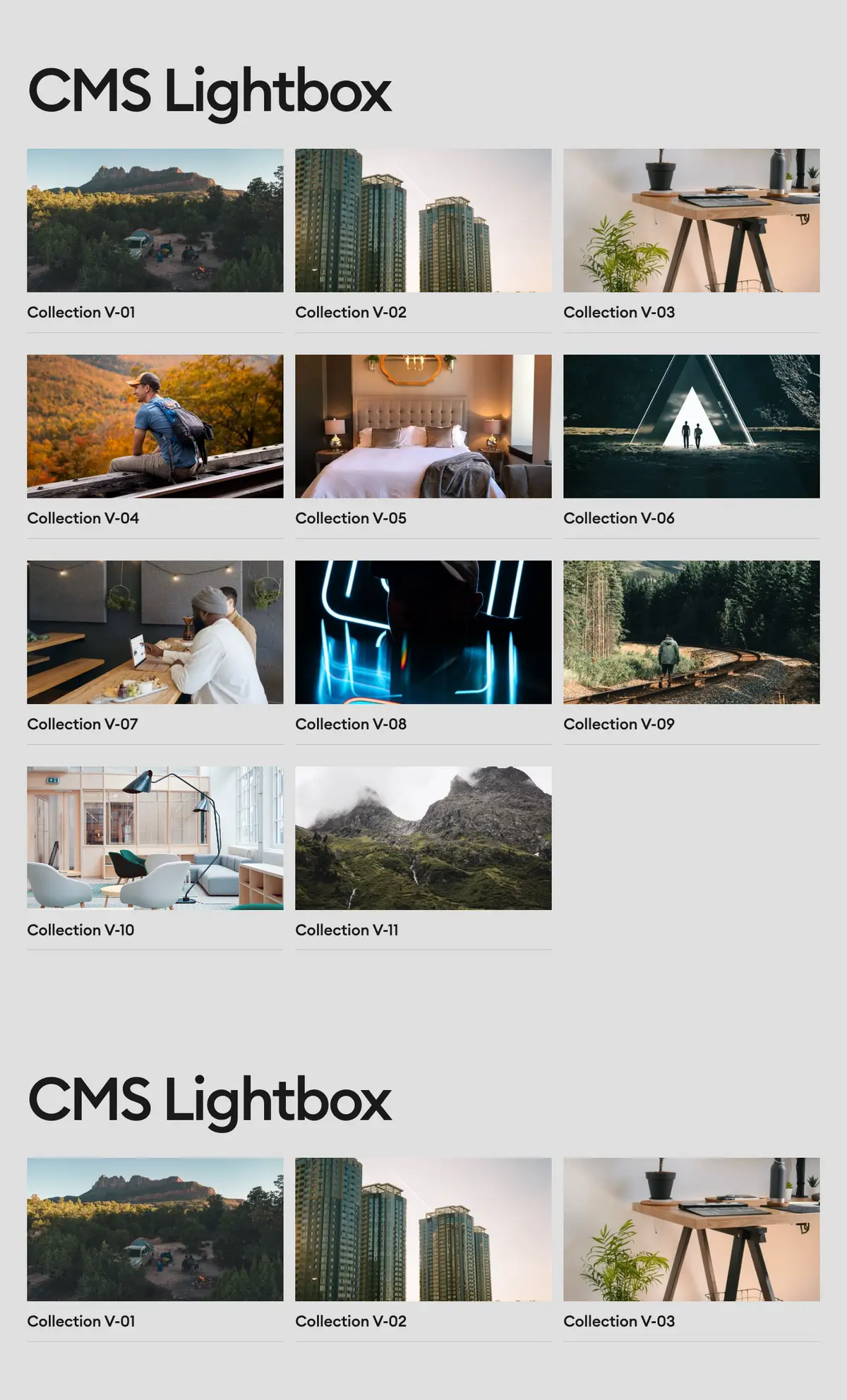
This Webflow cloneable, crafted by Timothy Ricks, offers a sophisticated CMS lightbox functionality perfect for users looking to enhance their website’s visual appeal. The cloneable includes multiple collections (Collection V-01 through V-11) that can be easily populated with dynamic content, making it suitable for portfolios, galleries, or any website that showcases a variety of items.
Utilizing standard CSS and jQuery, this cloneable features a seamless lightbox experience that allows users to view images or other media in an elegant overlay when clicked. The design ensures that interactions are user-friendly, with navigation arrows to cycle through the lightbox items effortlessly. The inclusion of the pointer-events property prevents unwanted interactions while maintaining a clean interface for lightbox navigation.
The customization options available through CSS enable users to modify the look and feel of the lightbox, providing flexibility in aligning with the overall website design. The use of the ::selection pseudo-element enhances the user experience by providing a distinct visual cue when users select text. Additionally, the color: inherit; rule for links ensures a consistent color scheme throughout the web pages.
By implementing this cloneable into their Webflow projects, users not only gain an interactive media display but also a refined aesthetic that can elevate the overall user engagement. With no reliance on external libraries, this cloneable is efficient and easy to deploy within any Webflow site. This makes it an invaluable asset for designers looking to create a modern, engaging online presence.
About CSS
How does the ::selection pseudo-element work in Webflow CSS?
The ::selection pseudo-element in this CSS code allows you to customize the appearance of the text when a user highlights or selects it. In this case, the background color is set to black (#000000), the text color is set to white (#FFFFFF), and any text shadow is removed. This customization enhances user experience by providing a clear visual cue of selection which can be particularly useful when designing a website in Webflow.
What does the 'color: inherit;' rule mean for links in Webflow?
The rule 'color: inherit;' for anchor tags (<a>) ensures that the link adopts the color of its parent element instead of the default blue color that most browsers apply to links. This flexibility allows for greater control over the visual design in Webflow without needing to specify a new color for every link, ensuring consistency in the color scheme throughout the site.
Why are pointer events set to 'none' for the .lightbox_arrow-contain class in Webflow?
By setting 'pointer-events: none;' on the .lightbox_arrow-contain class, any mouse events such as clicks or hovers will not be registered for this element and its children unless explicitly overridden. This may be used in Webflow to create an area that does not interfere with interactive elements below it or to prevent user interaction until a specific condition is met.
What is the purpose of allowing pointer events in the .lightbox_arrow class in Webflow?
In this implementation, '.lightboxarrow' has 'pointer-events: auto;', meaning that this specific element can still receive pointer events even if its parent (.lightboxarrow-contain) does not. This is useful in scenarios where you want to disable interaction for a large container while still allowing actions on smaller designated areas, such as arrow navigation in a lightbox gallery, facilitating a smooth user experience.
Does this CSS code require an external library to function properly in Webflow?
No, this CSS code does not require any external libraries to function. It uses standard CSS features that are supported by all modern browsers. However, if you are using additional functionalities in Webflow, some advanced features may rely on JavaScript libraries or plugins, but the provided styles themselves are purely CSS-based.
About Javascript
How does the Webflow lightbox functionality work in this JavaScript code?
The JavaScript code provided implements a lightbox feature for images or other content using jQuery. It targets elements with the class .lightbox-wrapper and initializes a lightbox container that can display individual items when clicked. The lightbox functionality includes opening and closing the lightbox, as well as navigation through items in the lightbox.
What does the purpose of each section of the code related to the lightbox behavior in Webflow?
- Initializing the lightbox: The code iterates over each
.lightbox-wrapper, hiding the lightbox by default (lightbox.css("display", "none")) on page load.
- Opening the lightbox: When a grid item with the class
.grid_item.is--cms-itemis clicked, it retrieves the index of that item and displays the corresponding lightbox content by adding the.is--activeclass to the relevant lightbox item.
- Closing the lightbox: Clicking on an element with the class
.lightbox_xhides the lightbox again by setting its display to none.
- Navigating through items: The code includes functionality for two navigation arrows (right and left) that allow users to cycle through the lightbox items. When an arrow is clicked, it determines the currently active item and manages the
.is--activeclass to show the next or previous item, or loops back to the first or last item if needed.
Are there any external libraries required to implement this lightbox feature in Webflow?
No, there are no external libraries explicitly required in the provided code, but it relies on jQuery syntax ($) for DOM manipulation. As Webflow often uses jQuery under the hood, this code integrates smoothly within the Webflow environment, utilizing jQuery to handle interactions without needing additional libraries.
How do I customize the appearance of the lightbox in Webflow using this JavaScript code?
To customize the appearance of the lightbox, you would adjust the associated CSS styles for the classes used in the JavaScript code (e.g., .lightbox-wrapper, .section.is--lightbox, .lightbox_item, etc.). You can add styles in your Webflow project to change dimensions, background color, positioning, and other visual effects, making sure they align with the behavior defined in the JavaScript code for a cohesive user experience.
Can this Webflow lightbox code be used for CMS items dynamically?
Yes, this code is designed to work with CMS items in Webflow as indicated by the use of .grid_item.is--cms-item. When integrated properly within a Webflow project, it allows for dynamic content, meaning that you can easily update the items displayed in the lightbox based on the CMS data without changing the JavaScript code, thereby rendering it effective for a wide range of scenarios.