Clip-path Swiper.js Slider Webflow cloneable
Create dynamic and engaging websites with the Clip-path Swiper Slider Webflow cloneable. Incorporating Greensock animations and Swiper.js library, this cloneable offers modern clip-path effects and seamless transitions for a captivating user experience. Perfect for boosting visual storytelling and user engagement, this cloneable is ideal for portfolio sites and creative projects.
About cloneable
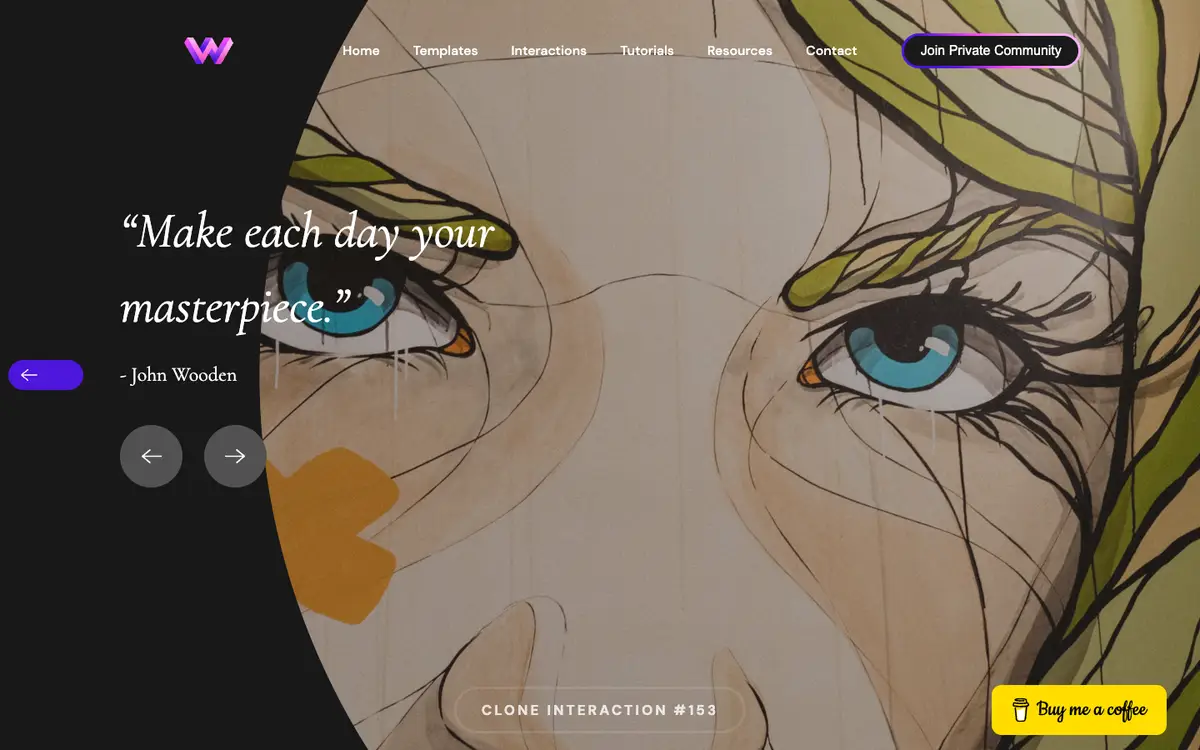
This Webflow cloneable created by WebDev For You presents an innovative clip-path swiper slider, perfect for enhancing the visual storytelling of any website. Utilizing the powerful Greensock animation script, the slider offers sophisticated animations that create a dynamic and engaging user experience. Inspired by the design principles showcased on Codrops, this cloneable allows web designers to implement cutting-edge aesthetics through its smooth transitions and modern clip-path effects.
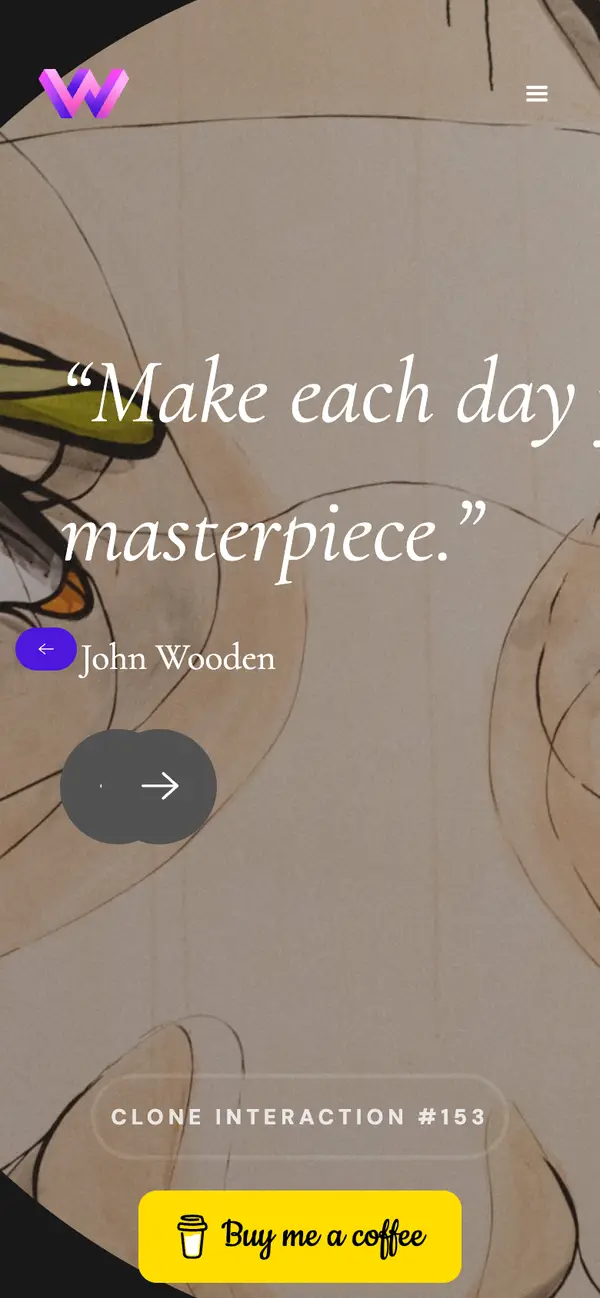
At its core, the cloneable incorporates the popular Swiper.js library, enabling responsive slider functionality that effortlessly adapts to various screen sizes. With features such as vertical navigation, looping slides, and customizable speed settings, users can create dynamic content presentations that captivate their audience. The addition of GSAP enhances the visual appeal, allowing for seamless animations that bring each slide to life.
The cloneable also includes tailored classes for buttons and SVG logos, ensuring a cohesive and polished appearance across the interface. The interactivity of buttons, achieved through well-defined CSS and JavaScript, invites user engagement, making every click an opportunity for connection.
By implementing this cloneable on a Webflow site, users gain access to a robust framework that not only amplifies aesthetic appeal but also boosts user engagement through intuitive navigation and thoughtful design elements. Perfect for portfolio sites, landing pages, or any creative project, this cloneable is an excellent tool for bringing modern web design to life.
About CSS
What does the .swiper-image class perform in Webflow?
The .swiper-image class utilizes the clip-path CSS property to create a circular clip effect on images. Specifically, it defines a circle with a radius of 70% and positions the center of the circle at 80% from the left and 50% from the top of the image. This is particularly useful in animations or presentations, where achieving a modern aesthetic through shapes can enhance the user experience in Webflow projects.
How does the .swiper-wrapper class affect transitions in Webflow?
The .swiper-wrapper class specifies a transition-timing-function of ease-in-out, which modulates the speed at which an animation progresses. This creates a smoother transition effect that accelerates at the start, decelerates at the finish, and is beneficial in Webflow when you want to enhance visual transitions between slides in a slider or carousel.
What styling does the .bmc-btn class apply in Webflow projects?
The .bmc-btn class designs a button with various properties. It sets a minimum width of 210px, a yellow background color (#FFDD00), and a height of 60px, which contributes to its visibility and interaction. The button features rounded corners with a border-radius of 12px and custom font styles carried from the cursive typeface 'Cookie'. Such styling enhances the button's presence in Webflow, ensuring a visually appealing call-to-action for users.
How does the hover effect work for .bmc-btn in Webflow?
The styles defined for .bmc-btn:hover, .bmc-btn:active, and .bmc-btn:focus enhance interactivity. The button remains visually consistent by preventing any text decoration changes, and the cursor changes to pointer, signaling to users that the button is clickable. This functionality is crucial for optimizing user engagement in Webflow projects.
What role does the .bmc-btn svg style play in button rendering within Webflow?
The .bmc-btn svg style applies specific properties to SVG icons that might be used within the button. It sets a height of 32px and ensures it remains aligned with the button's text via the vertical-align property. By setting flex-shrink: 0, the SVG will retain its size and layout even when the button is resized. This consistent rendering ensures that buttons look polished and professional in a Webflow interface.
How does the styling for .bmc-btn-text contribute to text positioning in Webflow?
The .bmc-btn-text class provides spacing for the text within the button by adding a left margin of 8px, while display: inline-block allows it to align properly with the surrounding elements. The flex-shrink: 0 property ensures that the text maintains its size regardless of the button's width, ensuring a consistent appearance. This is particularly useful for maintaining text clarity and aesthetics in Webflow applications.
What are the .logo-outline and .logo-coffee classes used for in Webflow designs?
The .logo-outline and .logo-coffee classes are used to define the fill colors for SVG logos. The .logo-outline class sets the fill to black (#000000), while the .logo-coffee class sets the fill to white (#ffffff). These properties are critical in ensuring that logos are displayed clearly and are visually distinct in a Webflow project, contributing to brand identity and aesthetic consistency.
About Javascript
What is the purpose of using Swiper.js in this Webflow code?
Swiper.js is leveraged in this code to create interactive and responsive sliders. The slider is configured with parameters like vertical direction, looping capability, and speed of transitions. This library enables developers to build sophisticated sliders that enhance user experience, especially in dynamic content presentations, which is valuable when using Webflow for web design.
How does the delay function for slider clicks work in this JavaScript code?
The code implements a delay to prevent users from clicking the slider buttons too quickly, which can cause transition issues. When a button is clicked, it disables the button by removing the 'enabled' class and sets a timeout that waits for a specified delay (700 milliseconds in this case) before allowing another slide transition. This mechanism improves the stability of the slider functionality while providing a smoother transition effect for users.
What is GSAP and how is it used for animations in this Webflow JavaScript code?
GSAP (GreenSock Animation Platform) is a powerful JavaScript library for creating high-performance animations. In this code, GSAP is utilized to create a clip-path animation effect when slides change. A timeline is created for the animation, which defines how the slide images transition in and out of view using specific clip-path properties. This enhances the visual appeal of the slider by adding engaging animations that can draw the user's attention.
How do the left and right arrow click events work with the Swiper instance in the code?
The left and right arrow buttons are wired to the Swiper instance using jQuery click events. When either button is clicked, the respective event prevents further clicks by removing the 'enabled' class. A timeout is then set to allow for the slide transition using the slidePrev or slideNext methods. After the specified delay, the buttons are re-enabled, allowing the user to interact with the slider again. This ensures that only one transition occurs per click, enhancing the user experience.